App To Page installs like any other WordPress plugin: you download a .zip, upload it from your
dashboard, and click activate. The whole thing takes about a minute, and you don’t need FTP, a
developer, or a single line of code.
What you’ll need
- A WordPress site you can log in to as an administrator.
- WordPress 5.8 or newer and PHP 7.4 or newer. (Most hosts have been on these for years — if you’re not sure, you almost certainly meet them.)
- That’s it. No Node, no server access, and nothing to configure.
Step 1: Download the plugin
Head to the download page and click Download app-to-page.zip. Your browser saves a
single file, app-to-page.zip, to your computer. Leave it zipped — WordPress wants the .zip, not
the unzipped folder.
Step 2: Upload it to WordPress
In your WordPress dashboard, go to Plugins » Add New Plugin, then click Upload Plugin at the
top of the screen. Choose the app-to-page.zip file you just downloaded, and click Install Now.
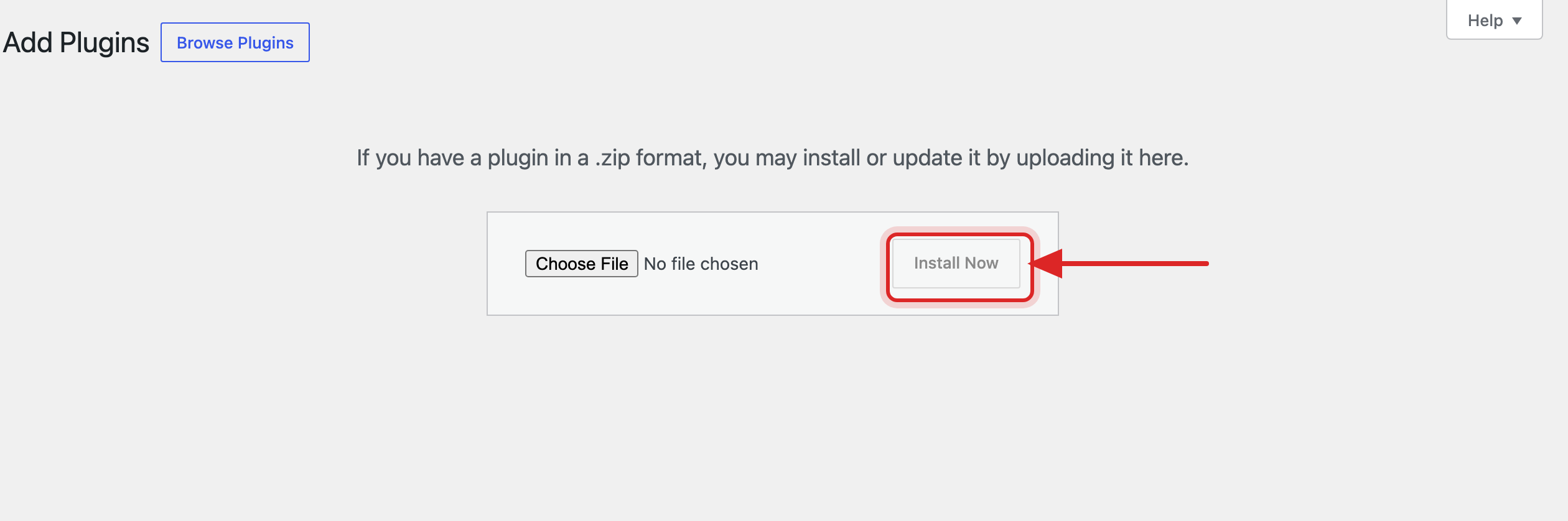
WordPress uploads the file and unpacks it for you. This usually takes a few seconds.
Note: If you see “The uploaded file exceeds the upload_max_filesize,” your host has a very low
upload limit. The plugin itself is tiny (under 100 KB), so this is rare — but if it happens, ask
your host to raise the limit, or install over SFTP by unzipping into wp-content/plugins/.
Step 3: Activate
Once the upload finishes, click Activate Plugin. WordPress returns you to the Plugins list, and a new App To Page item appears in your admin sidebar.
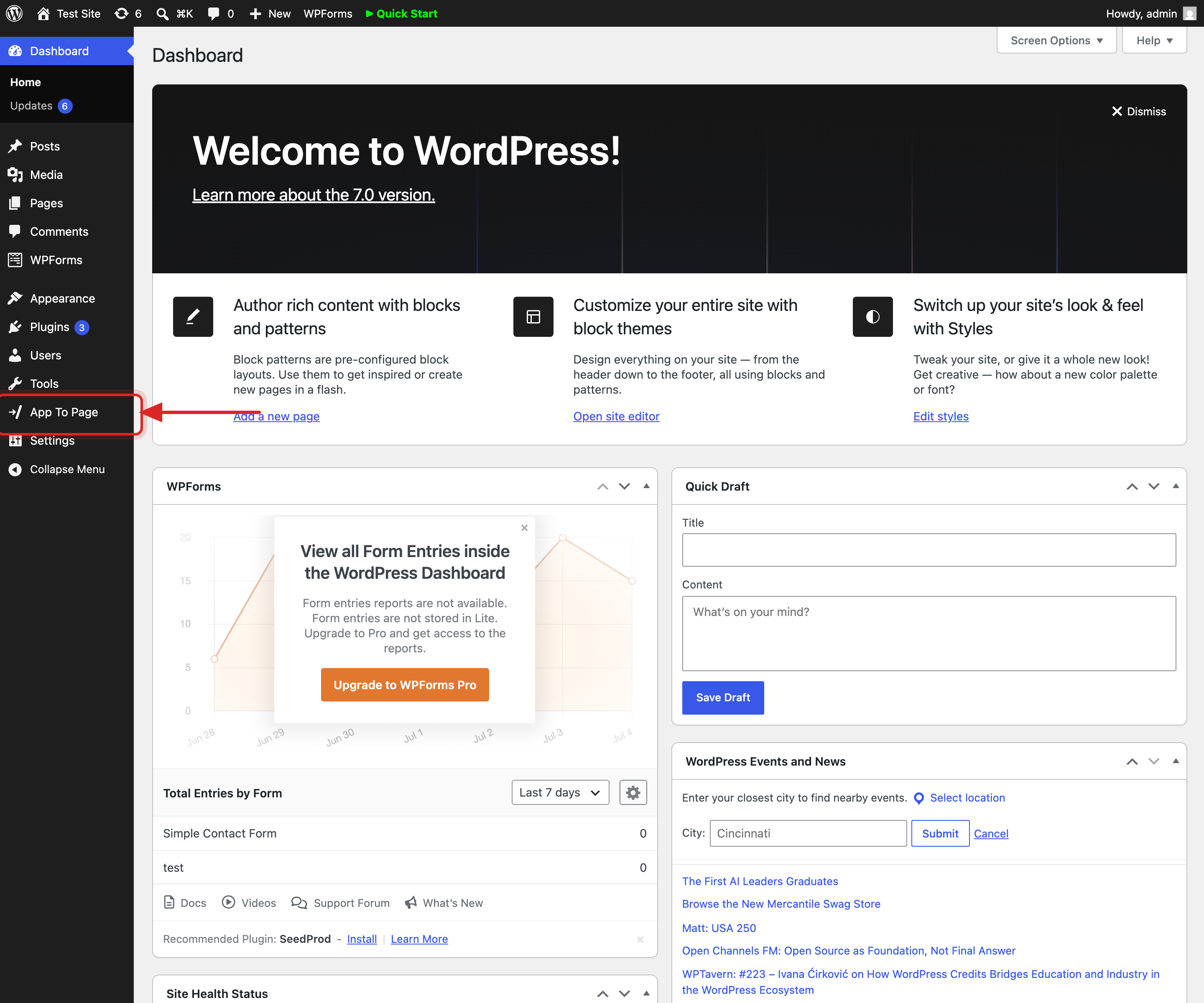
That’s it — App To Page is installed and ready. Open App To Page » Apps and you’ll see the upload screen, waiting for your first app.
Keeping the plugin updated
When a new version comes out, download the latest app-to-page.zip from the download page
and upload it the same way. WordPress recognizes it as an update and replaces the old version — your
uploaded apps, their URLs, and their settings are left untouched.
What’s next?
Now that it’s installed, let’s put something live:
- Deploy your first app — go from a
.zipto a live URL in about a minute. - How App To Page works — a quick tour of what’s happening behind the scenes.
Frequently asked questions
Is App To Page free?
Yes. App To Page is completely free, and you can use it on as many WordPress sites as you like.
Do I need FTP or coding skills to install it?
No. You install it entirely from the WordPress dashboard — the same Upload Plugin screen you’d use for any plugin. FTP is only a fallback if your host blocks dashboard uploads.
Will it work on shared hosting like Bluehost or SiteGround?
Yes. App To Page serves static files from your existing WordPress install. There’s no Node, no build step, and nothing special to provision, so it runs fine on ordinary shared hosting.
Where can I download App To Page?
From the official download page. Grab app-to-page.zip there and follow the three steps
above.